Penly: Digital Planner & Notes
PenlyProductivity
4.0536.00 Reviews
- Version
- 1.23.19
- Installs
- 100.00K
- Age Rating
- Everyone
Screenshots
Our Review of Penly: Digital Planner & Notes
 Analysis by Appyee
I like planning tools best when they help me get something done, rather than tempt me to spend the whole evening decorating a page. That balance is what I would weigh before buying Penly: Digital Planner & Notes: it combines handwritten-style notes, a digital planner and PDF work in one place, but it makes the most sense if you genuinely enjoy organizing on a screen. If you mainly need a quick checklist, a simpler notes app may be a better fit.
What the one-time price means for your decision
Penly is a paid productivity app, priced at $5.99. That makes the first question straightforward: will you use its planner and document tools often enough to justify paying for them? I would think of the purchase as access to a focused workspace, not as a promise that every possible planner feature or extra is included. Its age rating is Everyone, and the app is made by Penly.
The price is easier to make sense of if you already keep a digital planner, annotate PDFs, or write notes by hand on a device. If you only want somewhere to capture the occasional reminder, paying for a specialized planner could be more than you need. I would decide based on the routine I expect to build, not on how attractive a blank planner looks on the first day.
Where the value comes from
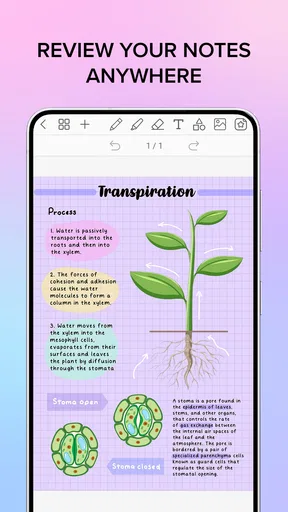
The useful idea here is bringing planning and note-taking close to PDF annotation. Instead of keeping a planner in one app, a document in another and handwritten notes somewhere else, you can use one workspace for those kinds of tasks. That can be valuable for a student marking up reading, a freelancer keeping project notes beside reference material, or anyone who likes writing directly on a page.
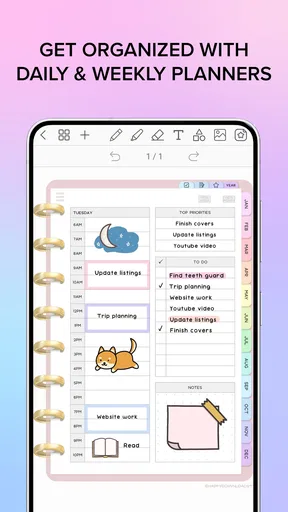
Personalization also has practical value when it makes a layout easier to use. A weekly view that gives more room to appointments, or a note page that suits quick sketches, can reduce the friction of returning to your planner. I would start with a simple setup and add decoration only when it helps me spot priorities or makes regular use more enjoyable.
First Impressions and Features
Right off the bat, Penly: Digital Planner & Notes is visually delightful. The interface is sleek, intuitive, and super user-friendly. You know how some apps feel like you need a PhD just to navigate them? Yeah, this isn’t one of those. It’s as if the app just gets me and knows exactly what I need without overwhelming me with options.
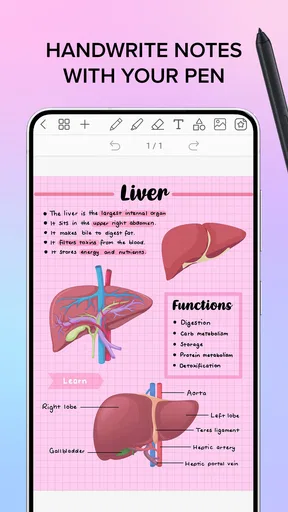
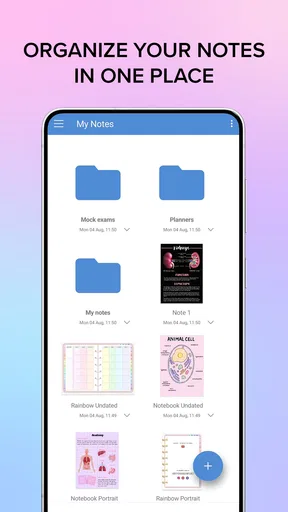
So, what’s in it for you? Well, the app is packed with features that make planning a breeze. You get a digital planner that is completely customizable. I was amazed at how easy it was to tweak layouts, colors, and fonts to fit my style. It’s like having a personal designer for your planner. And for those of us who love our little scribbles, the note-taking feature is a dream. You can jot down ideas, doodle, and organize notes effortlessly.
Customization Galore
If you’re anything like me, you love having control over every little detail. Penly: Digital Planner & Notes absolutely delivers on that front. From different pen styles to a rainbow of color options, the app lets you tailor your experience down to the tiniest detail. I spent a good hour just exploring all the customization possibilities, and it was time well spent.
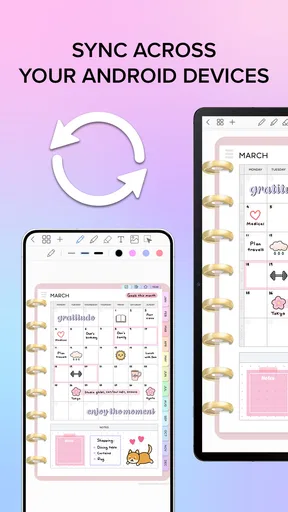
One feature that really caught my eye was the ability to import PDFs and add them directly into your planner. It’s a game-changer for anyone who needs to keep important documents handy. Plus, the app syncs seamlessly across devices, so you can plan on your tablet at home and check your notes on your phone while you’re out and about.
Seamless User Experience
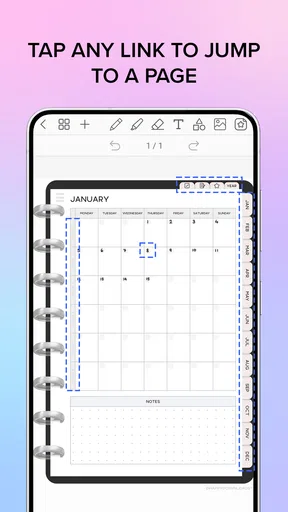
Let’s talk about the user experience. It’s smooth sailing from the moment you log in. The app runs without a hitch, and I didn’t encounter any annoying lags or crashes. The developers clearly put a lot of thought into making sure everything works just right. Navigating through different sections of the planner is a breeze, and the learning curve is practically non-existent.
Now, I’m one of those people who constantly forget to save changes, but with Penly, you don’t have to worry. The app autosaves your work, so you won’t lose anything if you accidentally close it. Trust me, it’s a lifesaver.
Practicality Meets Fun
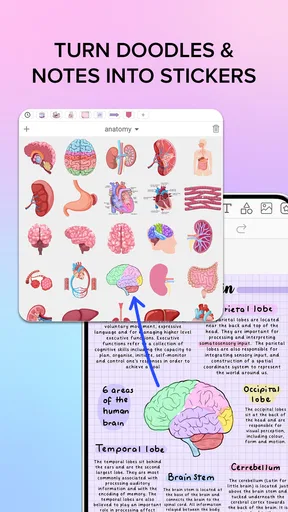
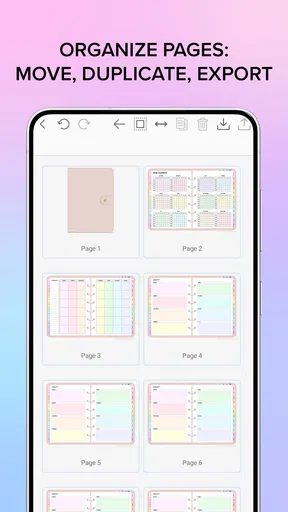
One of my favorite things about Penly: Digital Planner & Notes is that it doesn’t just stop at being practical. It also makes planning fun. There are so many templates to explore, and they keep adding new ones, which is a nice touch. Whether you’re planning a party, tracking your habits, or just jotting down daily to-dos, there’s a template for that.
The community element is also pretty cool. You can share your layouts with other users and get inspired by their creativity. It’s like having a support group of fellow planning enthusiasts, and who doesn’t love a bit of community spirit?
Final Thoughts
In a nutshell, Penly: Digital Planner & Notes is a powerhouse of productivity wrapped up in a beautifully designed app. It offers everything you could possibly need from a digital planner and then some. Whether you’re a seasoned planner or just starting out, this app has something for everyone.
If you’re ready to take your organization skills to the next level, give Penly a try. I promise you won’t be disappointed. It’s changed the way I plan my days, and it might just do the same for you!
How it fits into an everyday routine
A realistic use case is a student who receives a reading PDF, has a class discussion to prepare for, and needs to remember a few deadlines. I would keep the document close to the planner, mark relevant passages, then write a short list of questions and tasks on a note page. The advantage is not that every task magically disappears into one system; it is that the reference material and the planning around it can live together, so I spend less time switching context.
For a workday, the same approach can help with a meeting: keep a page for the agenda, make handwritten notes as the conversation moves along, and turn the important points into follow-up tasks afterward. I would avoid trying to make one page serve as a permanent archive for everything. A small number of clearly named sections is easier to revisit than a large pile of attractive but unlabeled pages.
PDFs, handwriting and the right device
PDF annotation is especially useful when the document itself is the thing I need to think with: a worksheet, a draft, a reading, or a form with space to mark up. It is less compelling when I only need to store a file without writing on it. In that case, a regular file manager or cloud document service may be quicker and more familiar. The distinction matters: Penly’s appeal is active work on pages, rather than simply collecting documents.
Handwriting can make notes feel natural for diagrams, rough planning and quick visual connections, but it is not automatically the fastest way to record every detail. If I need to capture a long block of text or search through many typed notes, a keyboard-first notes app may suit me better. I would use Penly for pages where layout and writing by hand help, and keep fast text capture elsewhere if that is already part of my routine.
For comfortable PDF marking and planner layout work, a larger screen is generally easier to use than a phone; a phone is more useful for checking a note while away from a desk. That is a practical trade-off rather than a requirement. Before building a serious workflow, I would also test the app on the device I plan to use most and make sure the writing experience feels comfortable there.
Make customization serve the plan
Customization can become its own hobby. My practical tip is to choose a small set of colors with consistent jobs, such as one for appointments and another for personal tasks, rather than changing the palette every week. That makes a page easier to scan later. Likewise, templates are most useful when they match a repeatable activity; a habit page or party plan can help when it supports a real routine, but a template you never revisit adds clutter.
When importing a PDF, I would first decide whether it belongs in a planner page for active annotation or in a separate reference area. That simple choice helps prevent a planner from becoming a dumping ground. I would also keep important work easy to recognize with clear labels, especially if I use the same app for personal planning and study or work notes.
What to check before relying on it
The published version is 1.23.18, and the stated minimum operating system is Android 8.0. The app has an average rating of 4.1 from around 3,600 ratings, with about 521 written reviews, and has been installed over 100,000 times. Those figures suggest it has found an audience, but they cannot tell me whether its particular writing and navigation style will suit my device or habits. I would try a small, low-stakes workflow first rather than moving every important note at once.
The description of synchronization across devices is appealing, but I would not build a critical routine around cross-device access until I had checked that it behaves the way I expect on my own devices. The same caution applies to any planner I depend on: keep especially important dates in a calendar or backup system I already trust. Autosaving is reassuring for everyday edits, but it is not a substitute for a sensible backup habit.
Who should buy it—and who should pass
I would recommend Penly to someone who likes writing by hand, wants to personalize pages, and regularly works with PDFs as well as planner notes. Students, journal keepers, and independent workers who enjoy visual organization are the clearest fit. The app’s appeal is strongest when those activities overlap, because that is when having a shared digital workspace can save repeated switching between tools.
I would skip it if I wanted only a basic checklist, mostly type notes, or need a straightforward shared work system. A conventional calendar is better for people whose main concern is scheduling and reminders; a simple notes app is better for quick text capture; and a dedicated document reader may be preferable for reading without annotation. Those alternatives are not inferior—they are simply more direct for those jobs.
My buy-or-skip verdict
Penly is a considered purchase rather than an automatic recommendation. At $5.99, I think it offers a reasonable case for people who will use its combination of handwriting, planner customization and PDF work regularly. If the main attraction is merely browsing templates or creating one polished page, I would pause before paying; the value comes from returning to it as part of an actual routine.
Overall, I would choose it when I want a flexible, visual place to plan and write, and I would keep simpler tools in mind for tasks they handle more efficiently. Start with one weekly plan and one real document, then see whether the workflow saves effort after the novelty wears off. If it does, the purchase makes sense; if it encourages more decorating than doing, a simpler alternative will probably serve you better.
Verdict
Strengths of Penly: Digital Planner & Notes
- User-friendly interface enhances productivity.
- Customizable templates for personalized planning.
- Seamless syncing across multiple devices.
- Supports a wide variety of file formats.
- Handwriting recognition for easy note-taking.
Limitations of Penly: Digital Planner & Notes
- Limited free features, requires premium upgrade.
- Occasional sync issues between devices.
- No offline mode for certain features.
- High learning curve for beginners.
- Some users report lag on older devices.
Similar Picks in This Category
View All
Google Calendar
Google LLC4.6

Google Drive
Google LLC4.3

Google Assistant
Google LLC3.9

Microsoft OneDrive
Microsoft Corporation4.6

Samsung Calendar
Samsung Electronics Co., Ltd.4.1

Microsoft OneNote: Save Notes
Microsoft Corporation4.6
Frequently Asked Questions
What platforms is Penly: Digital Planner & Notes available on?
Penly: Digital Planner & Notes is available for both Android and iOS devices. It’s designed to provide a seamless experience across smartphones and tablets, allowing users to organize their schedules, take notes, and manage tasks efficiently. Ensure your device meets the app's system requirements for optimal performance.
Does Penly require an internet connection to function?
Penly is primarily an offline app, allowing users to access their planners and notes without an internet connection. However, certain features like cloud backup or sharing may require internet access. This makes it convenient for users who need reliable access to their information anywhere, even without connectivity.
Can I customize my planner in Penly?
Yes, Penly offers extensive customization options. Users can choose from various templates, add stickers, and personalize their planners with different fonts and colors. This flexibility allows you to tailor your planner to fit your personal style and organizational needs, enhancing productivity and creativity.
Is there a cost to download and use Penly?
Penly offers a free version with basic features, but for advanced functionalities, users may need to purchase a premium version or additional in-app features. This allows you to try out the core functions before deciding if the premium options are worth the investment for your needs.
How secure is my data in Penly?
Penly prioritizes user data security by incorporating encryption and secure data storage practices. Users can also enable password protection for their planners. For added safety, it's recommended to regularly back up your data to a secure cloud service or external storage, ensuring your information is safeguarded.
